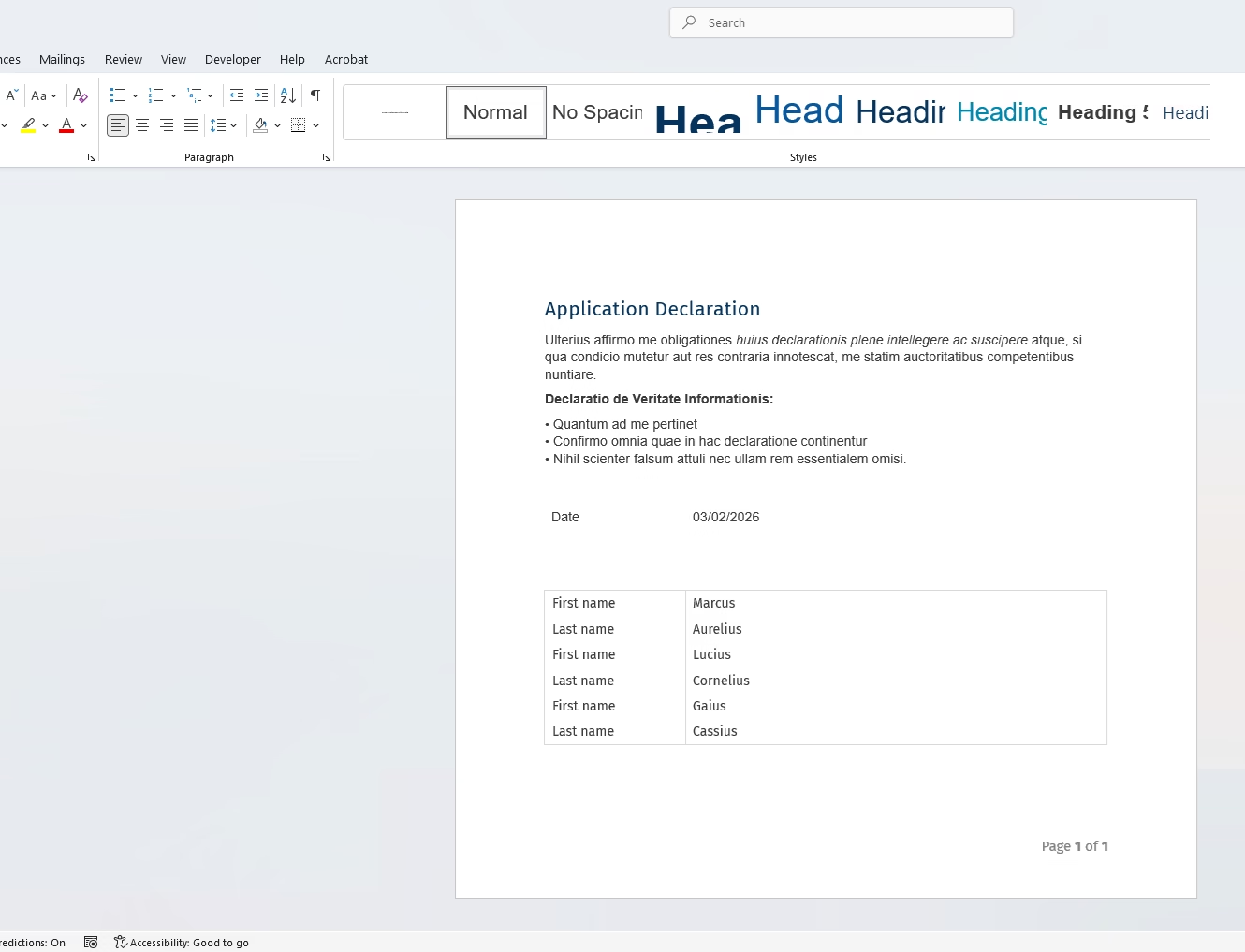
This post walks through a practical example of generating a Word document (Figure 1) using the Power Automate action ‘Populate a Microsoft Word Template’. It demonstrates how structured data can be merged into a reusable template to produce consistent, professional documents directly from your flows
Steps
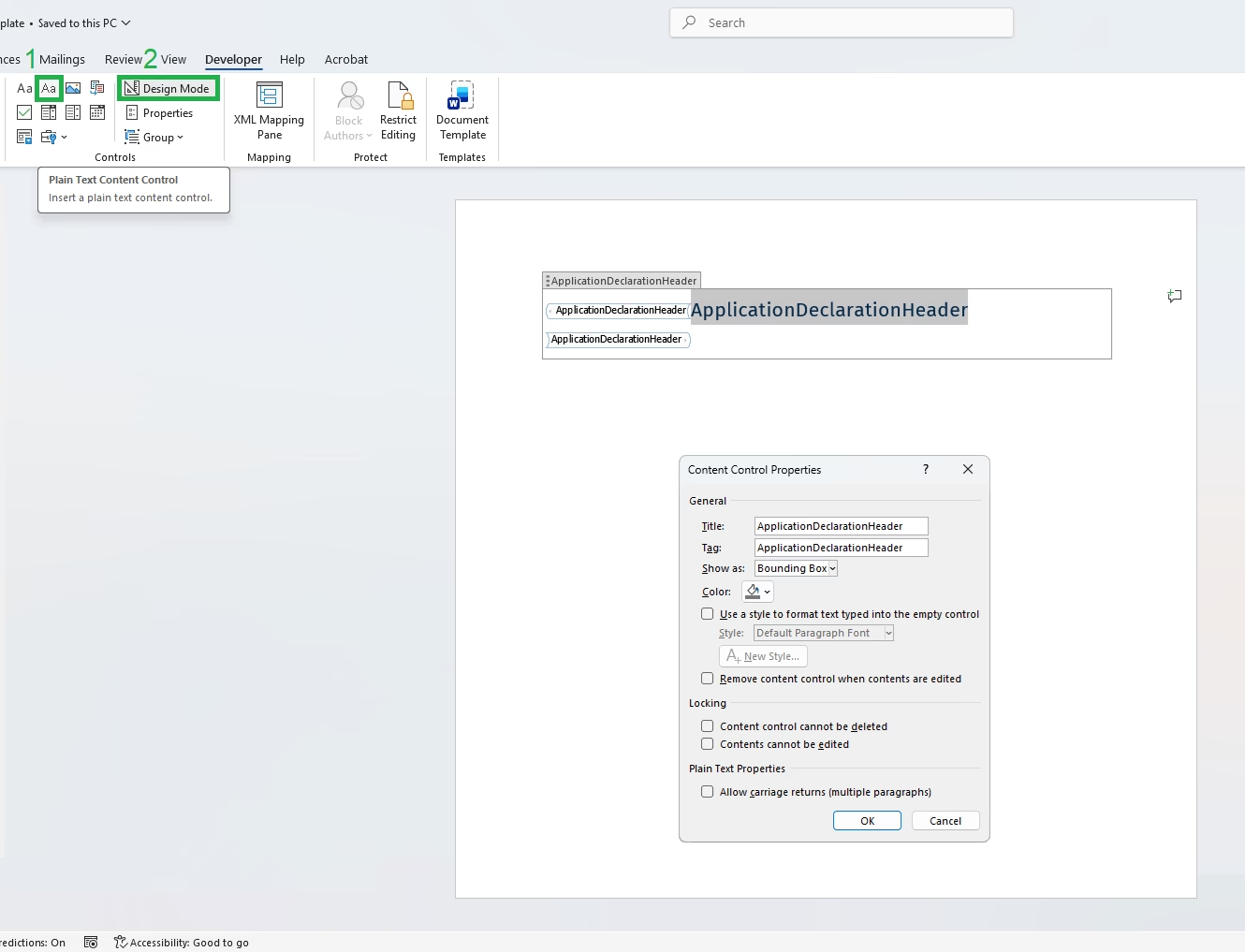
To insert a content control, open the Developer tab, select Plain Text Content Control, and then choose Design Mode. This is where you can set the control’s Title and Tag (see Figure 2)
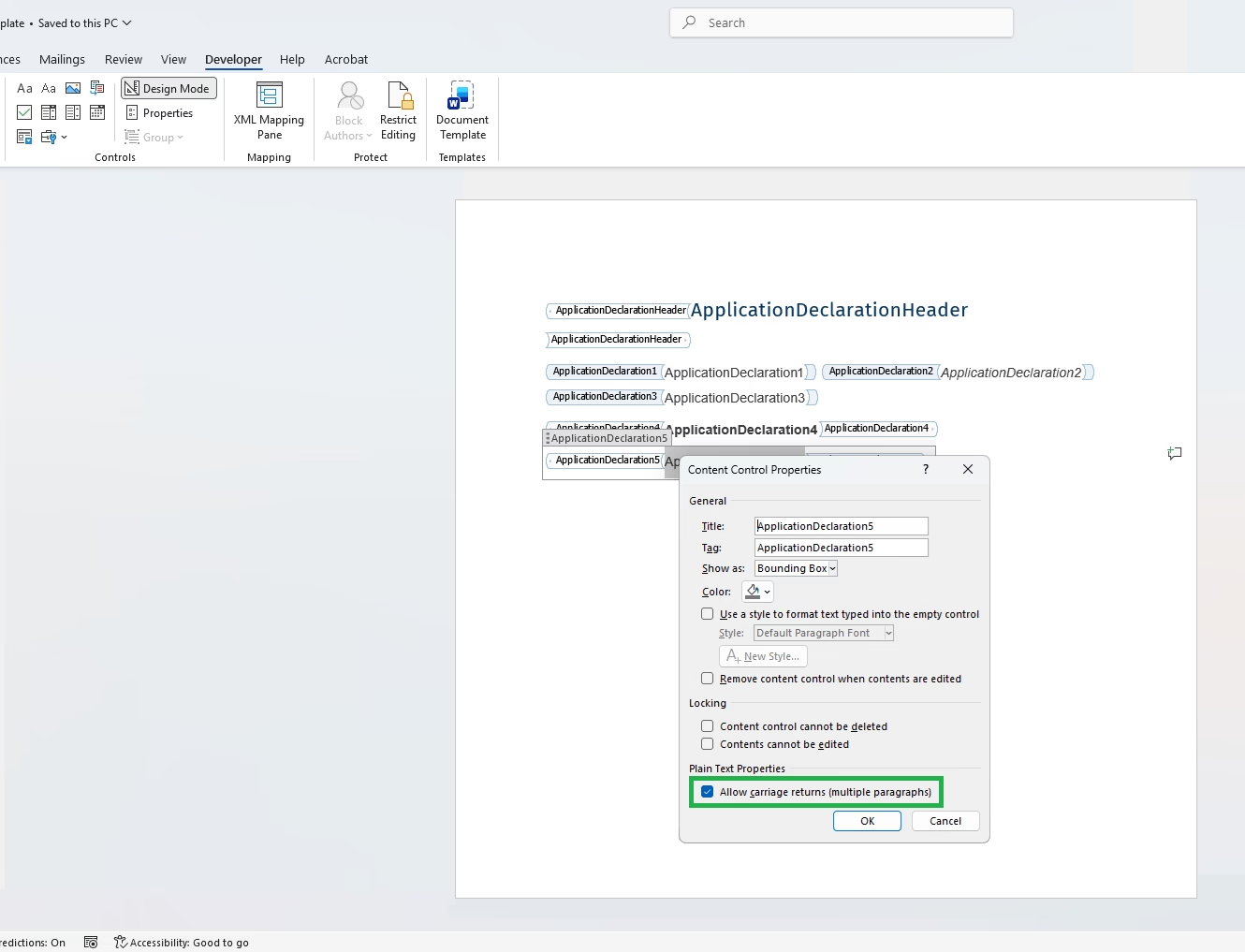
To allow multiple lines, select ‘Allow carriage returns (multiple paragraphs)’ (see Figure 3)
To add the repeating section, select the row in the document and choose Repeating Section Content Control. Then switch to Design Mode and enable Allow users to add and remove sections (see Figure 4)
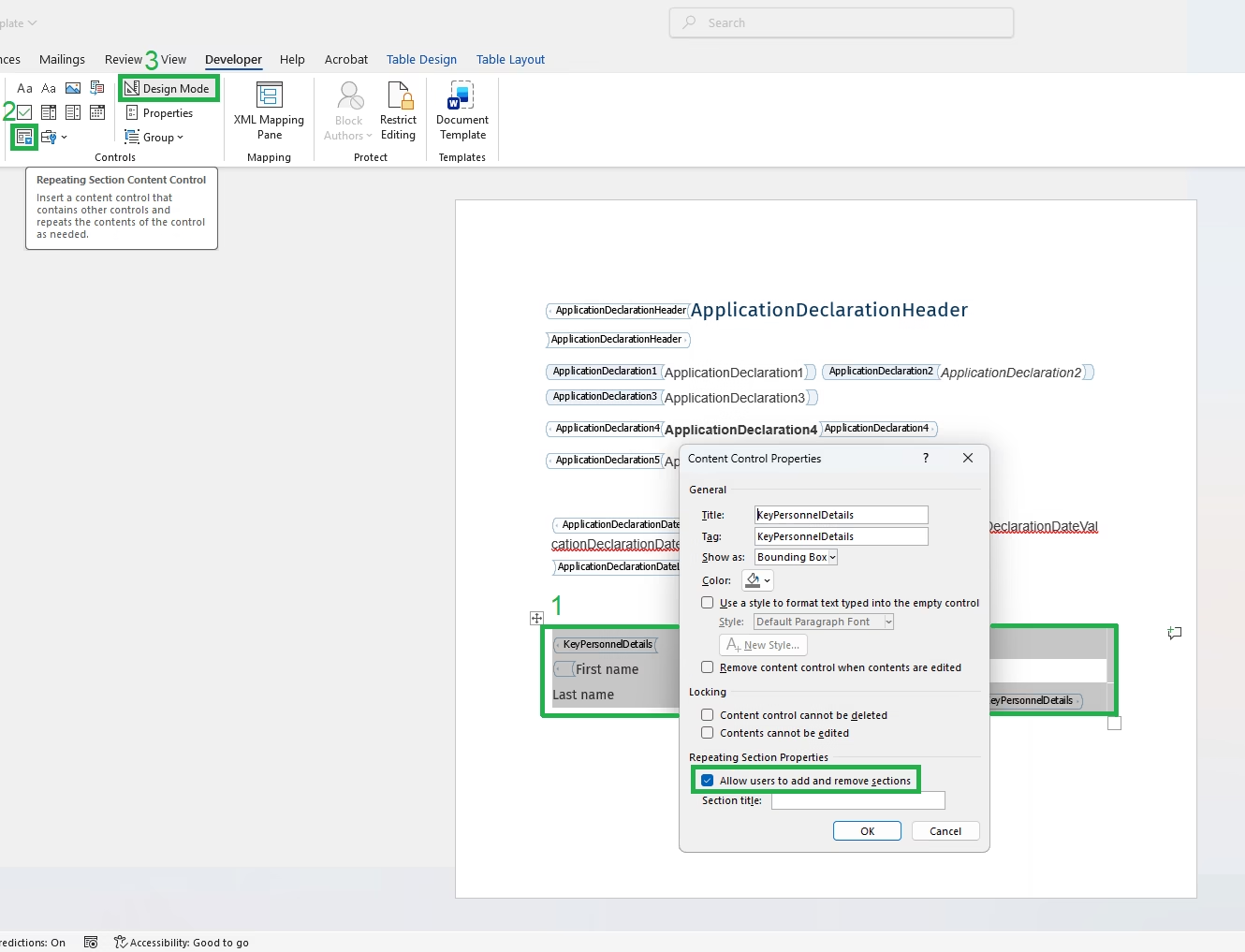
Figure 5 shows the finalised word template
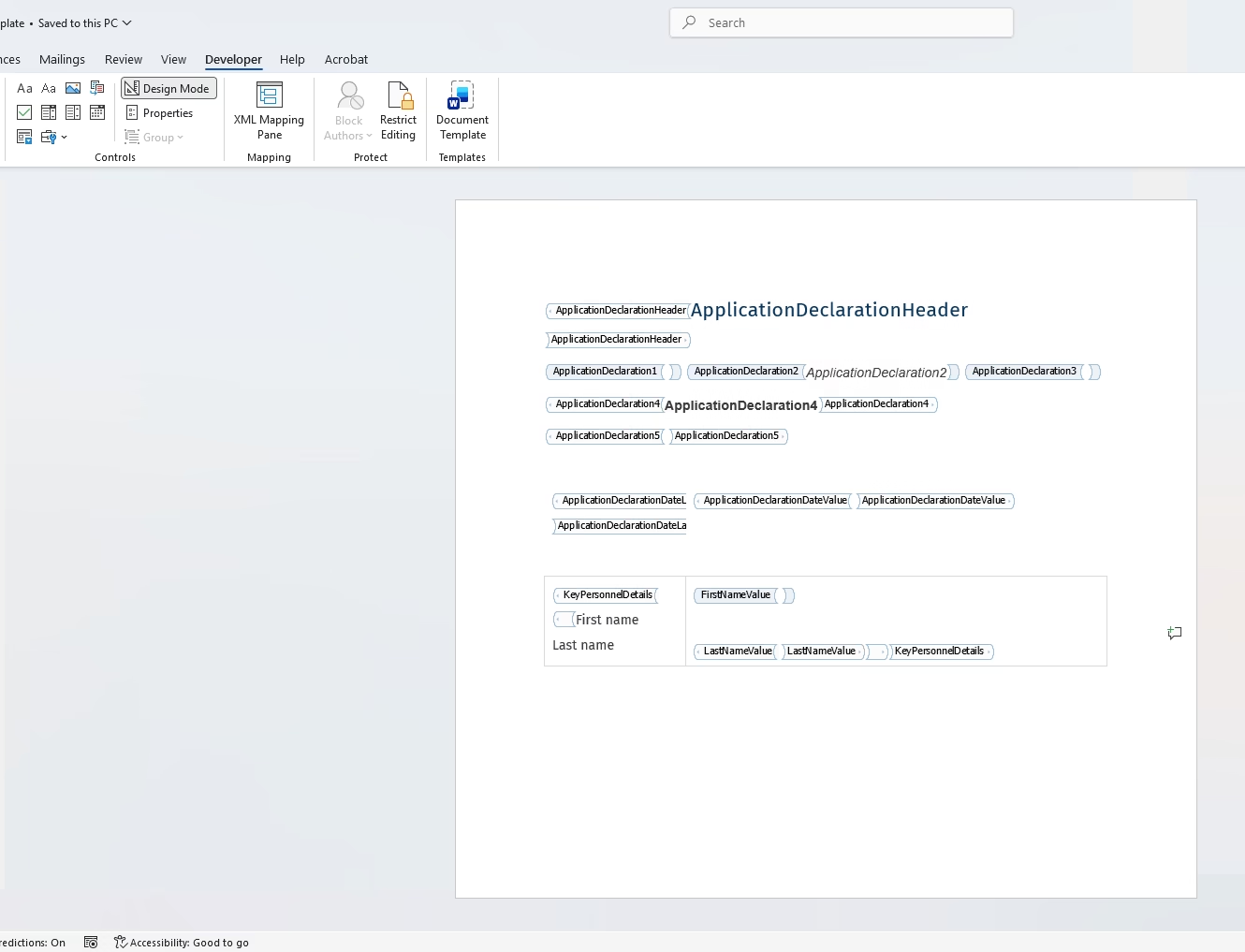
Figure 6 illustrates how the value for the ‘ApplicationDeclarationDateValue’ control is determined
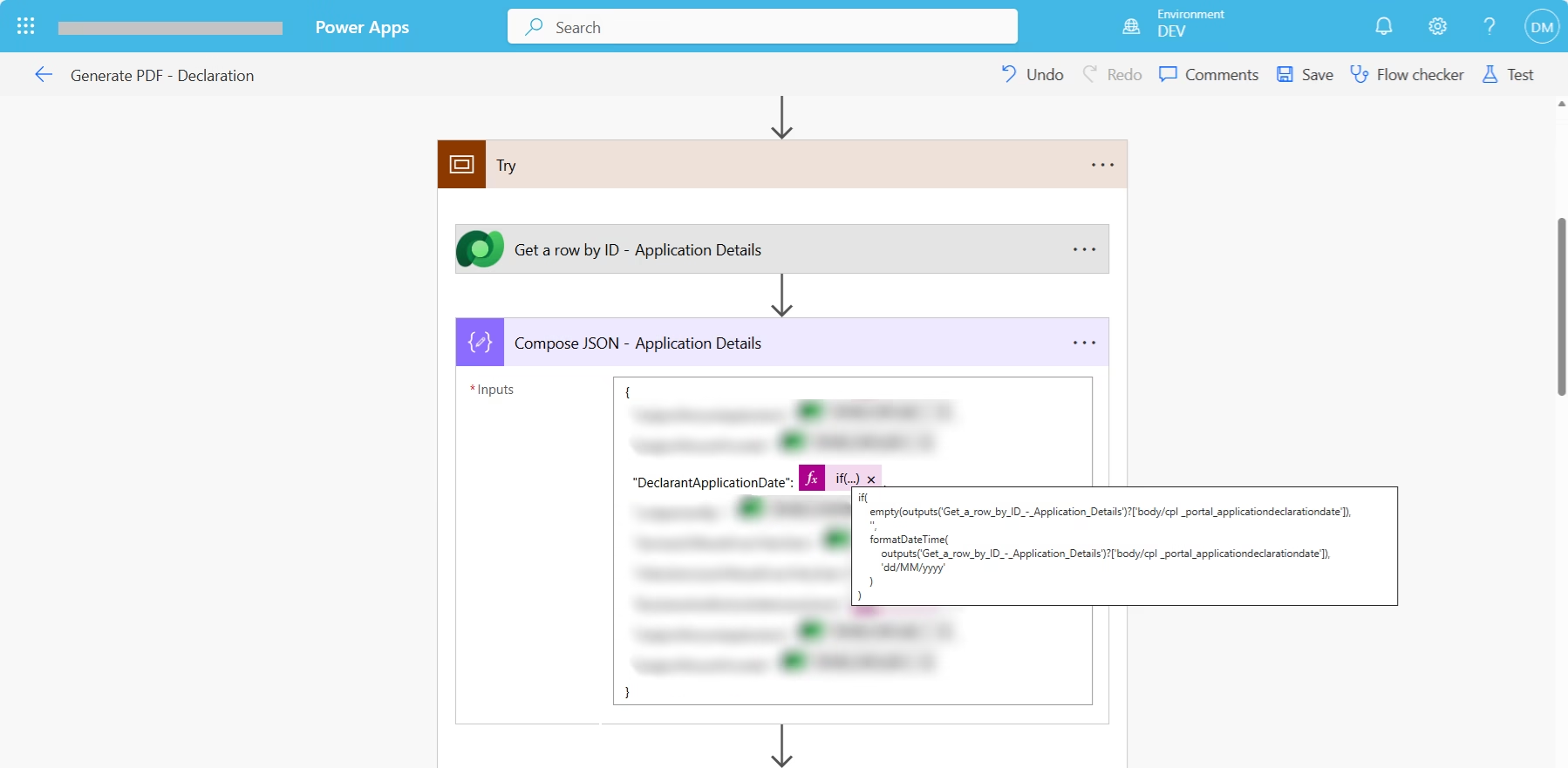
Figure 7 displays how the data for the ‘KeyPersonnelDetails’ control is determined
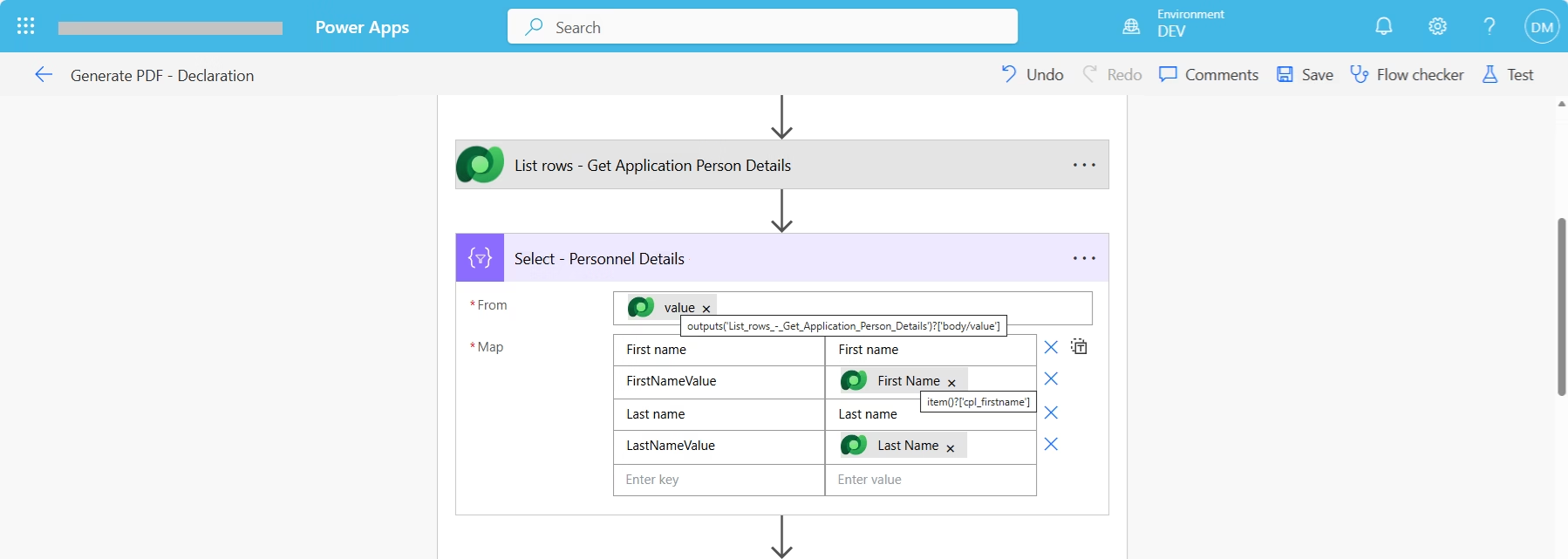
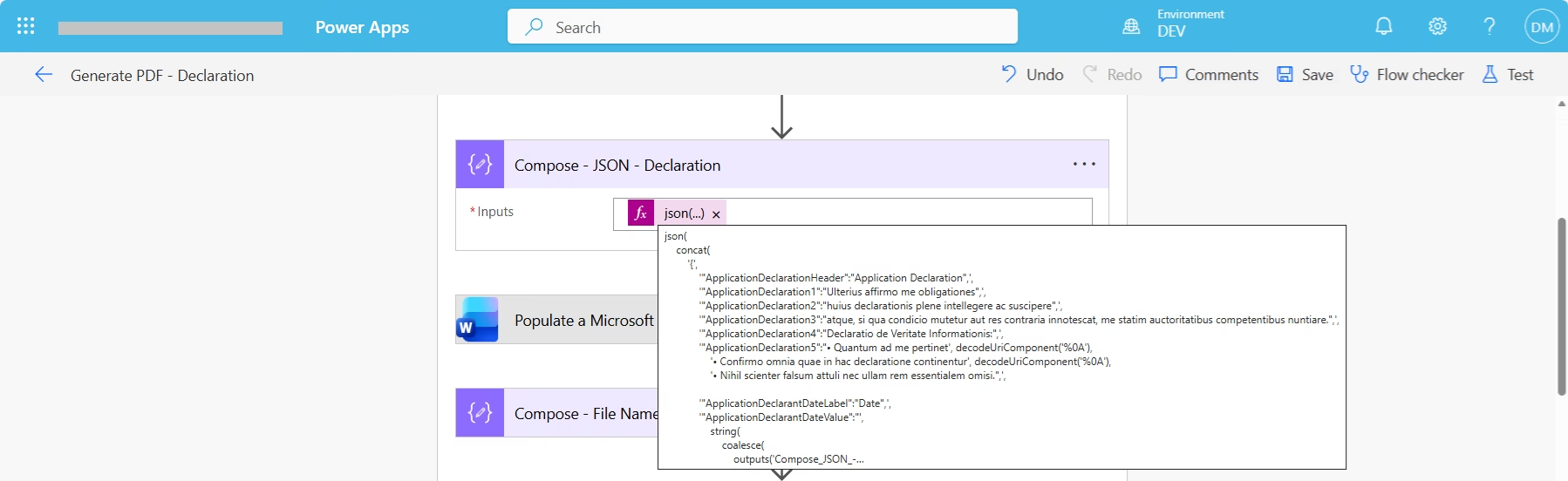
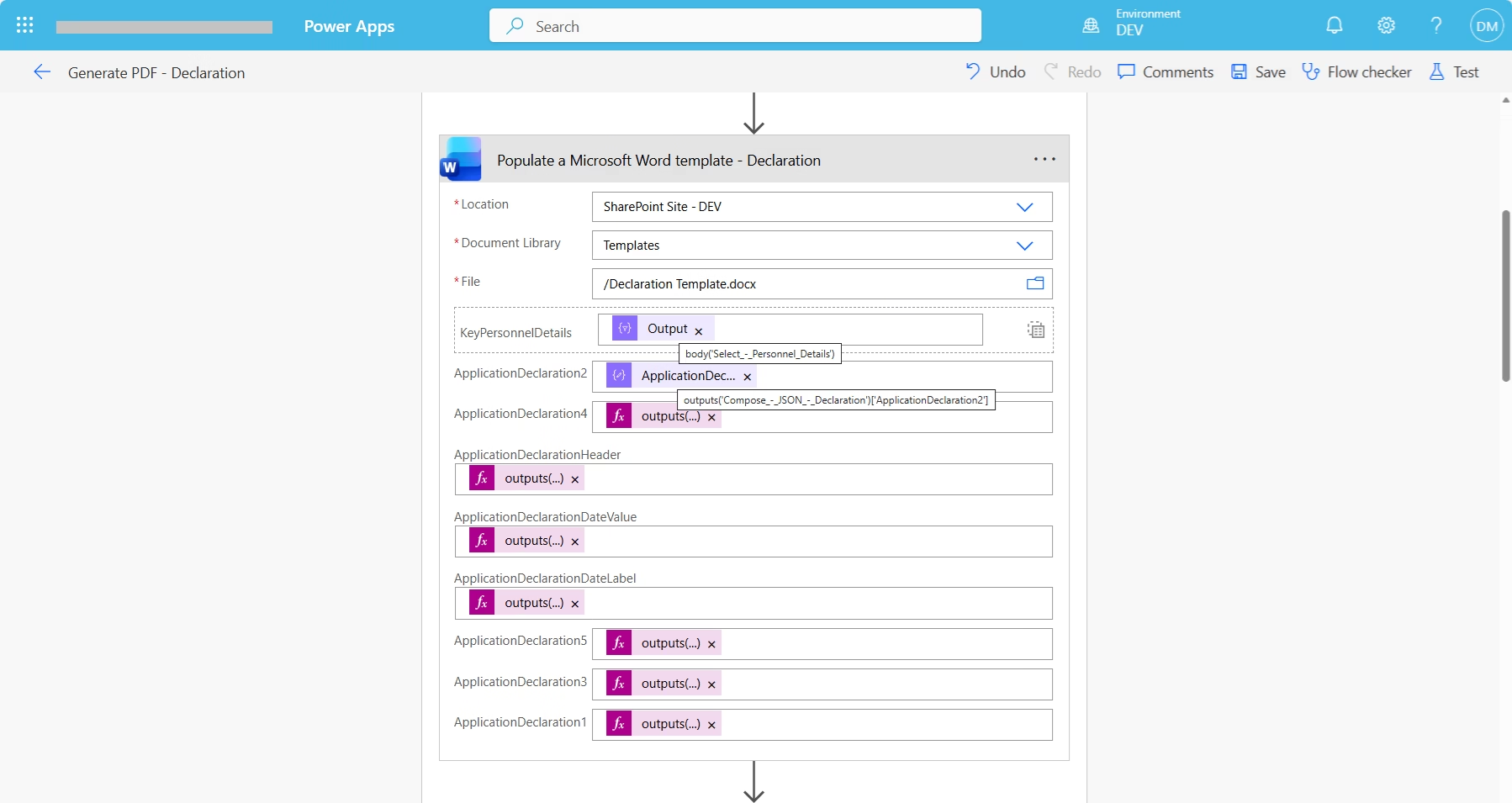
Figure 8 shows how most of the required data is composed, ready to be added to the Word template (Figure 9)
json(
    concat(
        '{',
            '"ApplicationDeclarationHeader":"Application Declaration",',
            '"ApplicationDeclaration1":"Ulterius affirmo me obligationes",',
            '"ApplicationDeclaration2":"huius declarationis plene intellegere ac suscipere",',
            '"ApplicationDeclaration3":"atque, si qua condicio mutetur aut res contraria innotescat, me statim auctoritatibus competentibus nuntiare.",',
            '"ApplicationDeclaration4":"Declaratio de Veritate Informationis:",',
            '"ApplicationDeclaration5":"• Quantum ad me pertinet', decodeUriComponent('%0A'),
                '• Confirmo omnia quae in hac declaratione continentur', decodeUriComponent('%0A'),
                '• Nihil scienter falsum attuli nec ullam rem essentialem omisi.",',
            '"ApplicationDeclarantDateLabel":"Date",',
            '"ApplicationDeclarantDateValue":"',
                string(
                    coalesce(
                        outputs('Compose_JSON_-_Application_Details')?['DeclarantApplicationDate'],
                        ''
                    )
                ),
            '"',
        '}'
    )
)Figure 9 shows how data is added to each control in the word template.
References
Work with data operations – Power Automate | Microsoft Learn